Ssl certificate browser
1344×768 · AVIF · CC BY 4.0
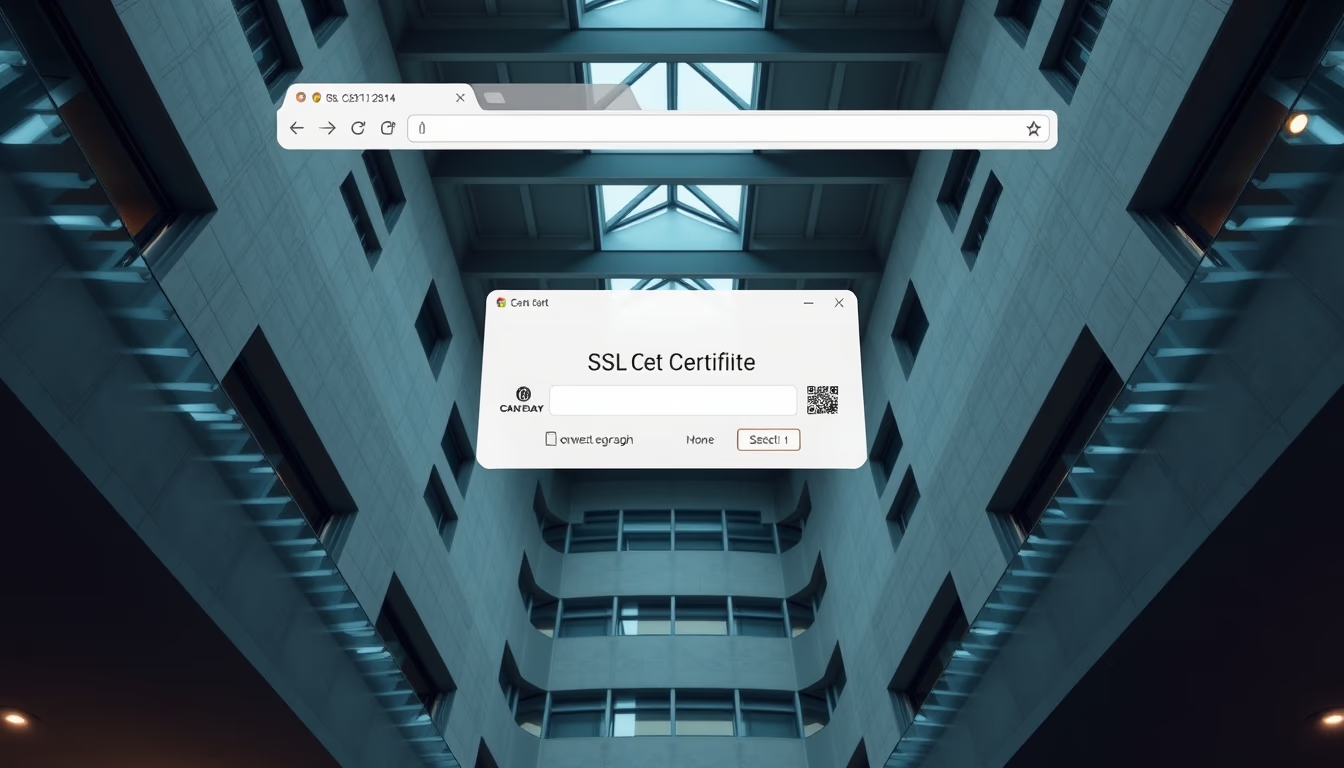
Understand how the visual SSL certificate indicator in your browser protects your connection and online data.
About this subject
An SSL (Secure Sockets Layer) certificate is a digital document that authenticates a website's identity and encrypts communication between the server and the browser. In the browser, it appears as a padlock icon in the address bar, often accompanied by "https". Clicking the padlock reveals details such as the issuing organization, validity period, and encryption level. This information is critical for verifying a site's legitimacy and ensuring that personal data like passwords and credit card numbers are protected from interception.
The importance of SSL goes beyond encryption. It builds trust: websites with valid certificates convey security to visitors. There are three validation levels: Domain Validation (DV), which only confirms domain ownership; Organization Validation (OV), which verifies business details; and Extended Validation (EV), which requires rigorous auditing and displays the organization's name in green in the address bar. Each level offers different degrees of assurance, with EV being the most trustworthy for financial transactions.
To check a certificate, click the padlock and select "Connection is secure" or "Certificate". A window will show information like the issuer, expiration date, and fingerprint. Be wary of sites with broken padlocks or "Not secure" warnings. Modern browsers like Chrome and Firefox block or warn about pages with invalid or expired certificates. Additionally, Google prioritizes HTTPS sites in search results, making SSL an important SEO factor.
Today, HTTPS adoption is nearly universal for serious websites, driven by initiatives like Let's Encrypt offering free certificates. Even so, users must know how to interpret browser visual cues to avoid phishing and fraud. The padlock is not just an icon; it represents a security layer that protects millions of daily transactions.
Frequently Asked Questions
What does the padlock in the browser mean?
The padlock indicates that the connection to the site is encrypted via SSL/TLS and that the site has a valid certificate. Clicking it shows security details.
How can I verify if an SSL certificate is trustworthy?
Click the padlock and check the issuer, expiration date, and validation level (DV, OV, or EV). Prefer certificates from recognized authorities like Let's Encrypt, DigiCert, or GlobalSign.
What should I do if the browser shows 'Not secure'?
Avoid entering personal or financial information. 'Not secure' means the site does not use HTTPS or has an invalid certificate. Refresh the page or look for a secure version of the site.
Direct URL
https://pub-c7d6a6ea828543ac903a74a341ccb2e1.r2.dev/imagens/ssl-certificate-browser-architectural-photography-p4.avifHow to credit
Include a visible link back to UtilizAí. Copy one of the snippets below:
<a href="https://xn--utiliza-eza.com/en/midia/imagens/ssl-certificate-browser-architectural-photography-p4">Ssl certificate browser</a> by <a href="https://xn--utiliza-eza.com">UtilizAí</a>, licensed under <a href="https://creativecommons.org/licenses/by/4.0/">CC BY 4.0</a>.
[Ssl certificate browser](https://xn--utiliza-eza.com/en/midia/imagens/ssl-certificate-browser-architectural-photography-p4) by [UtilizAí](https://xn--utiliza-eza.com), CC BY 4.0
License: CC-BY-4.0